
How to Select and Download Your Photos from Your Pic-Time Gallery
Yay! You've received your photo gallery, full of incredible images. Now comes the tricky task of narrowing down your favourites and making your final selection. Exciting!
If this is your first time using Pic-Time, don't worry. It's actually really straightforward once you know where everything lives.
This guide will walk you through how to choose your favourite images, send your selections to me, and download your finished gallery afterwards.
Step 1: Enjoy your gallery first
Before you start selecting images, I'd actually encourage you to simply look through the gallery.
Make yourself a cup of tea, pop the kids in front of Bluey for ten minutes if you need to, and enjoy seeing your photos for the first time.
It's much easier to choose your favourites once you've seen the whole story.
Step 2: Flag the photos you'd like to choose
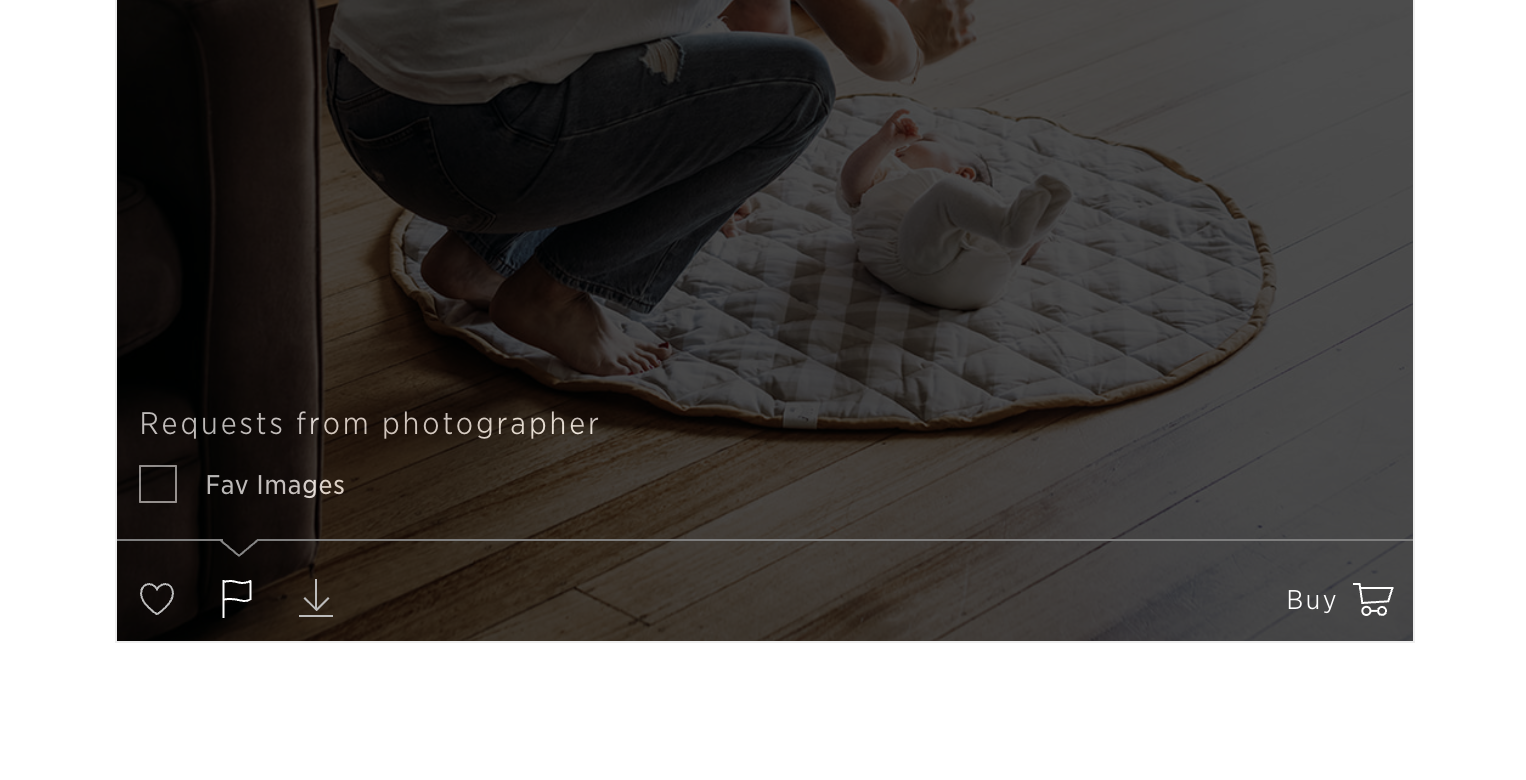
When you find a photo you'd like to include in your package, click the flag icon underneath the image.
Every time you flag a photo, it'll be added to your selection list.
Don't stress about getting it perfect the first time around. You can always remove a flag or change your mind before sending your final selection through.
Take your time!
Step 3: Keep an eye on your total
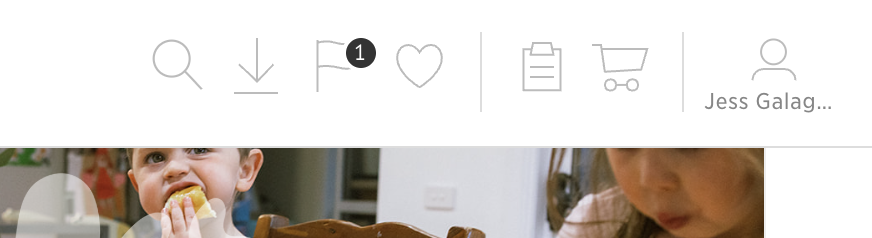
As you flag images, you'll notice a little number appear next to the flag icon at the top right of the gallery.
This simply keeps track of how many photos you've selected so far.
It's a handy way to keep track of how many photos you've chosen, without having to count them yourself.
Step 4: Review your selections
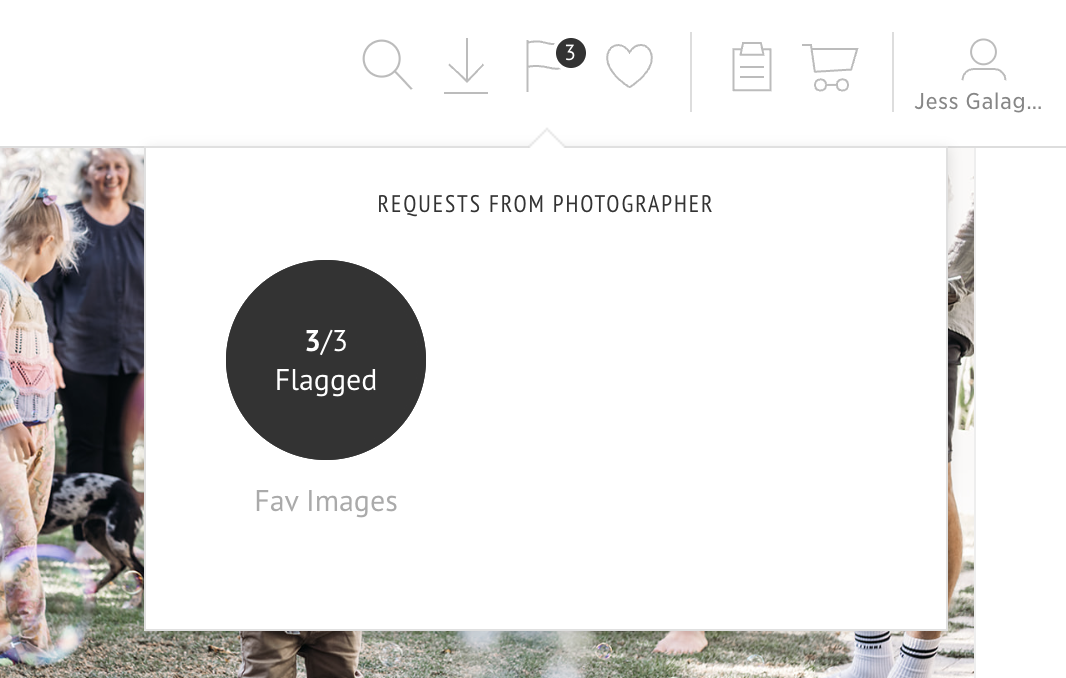
Once you've finished choosing your favourites, click the flagged circle icon in the top right-hand corner of the gallery.
This will take you to your selection confirmation screen.
Step 5: Confirm and send your selections
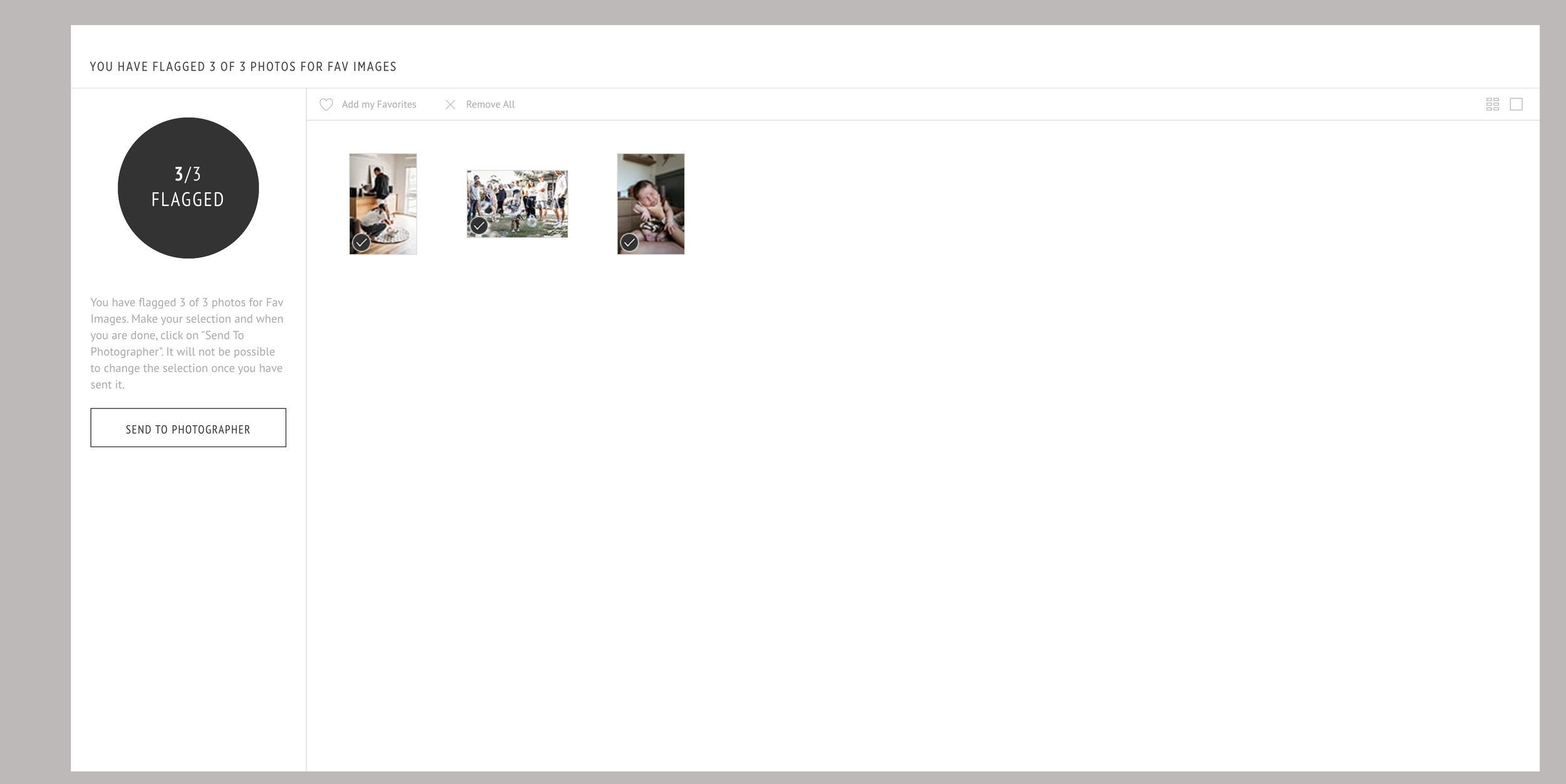
This is where you'll be able to see all of the images you've flagged in one place before sending them through.
Take one last look and make sure you're happy with your choices.
If everything is looking correct, simply click Send to Photographer.
Once you've done this, I'll receive your selections and get to work preparing your final gallery.
Accidentally clicked "Send to Photographer" a little too soon? Don't panic. Just send me a message and we'll sort it out.
Once your final gallery is ready...
After I've finished preparing your chosen images, you'll receive another email with your final gallery full of your chosen images.
This time, there are no more decisions to make (yay). All you have to do now is download your photos and enjoy them!
Step 6: Download your entire gallery
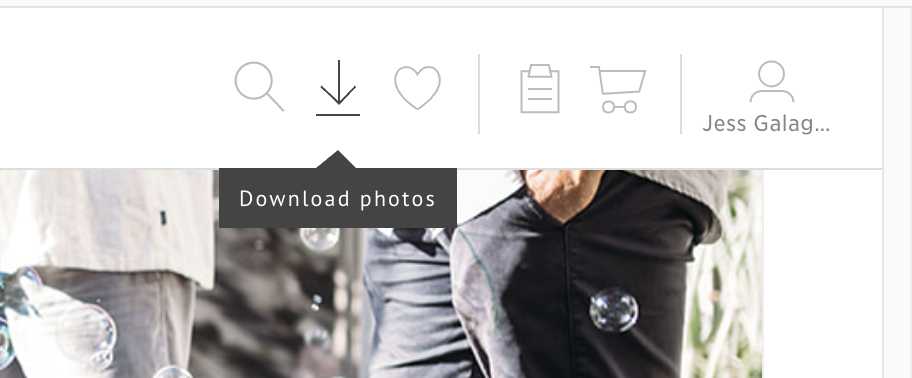
If you want to download your entire gallery - click the Download icon at the top of your gallery.
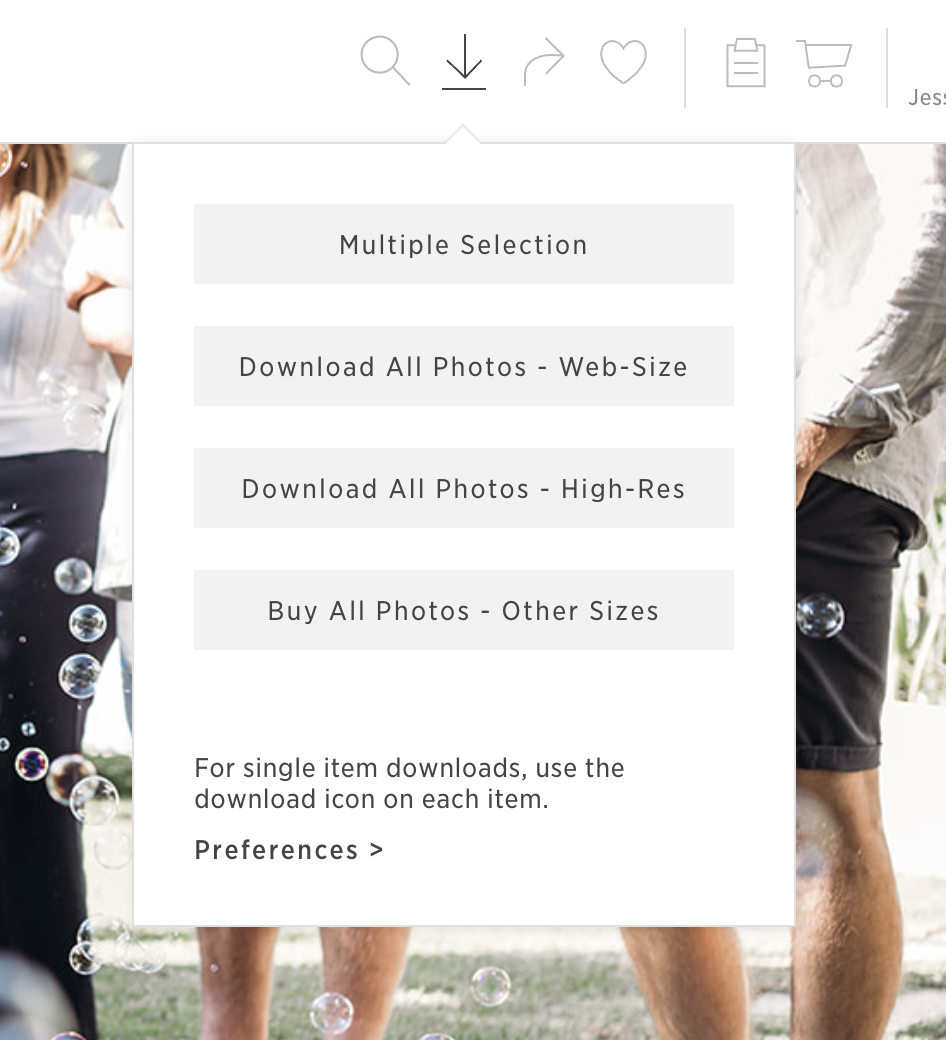
You can choose whether you'd like to download:
High Resolution - Perfect for printing and keeping forever.
Web Size - Ideal for sharing on social media or sending to friends and family.
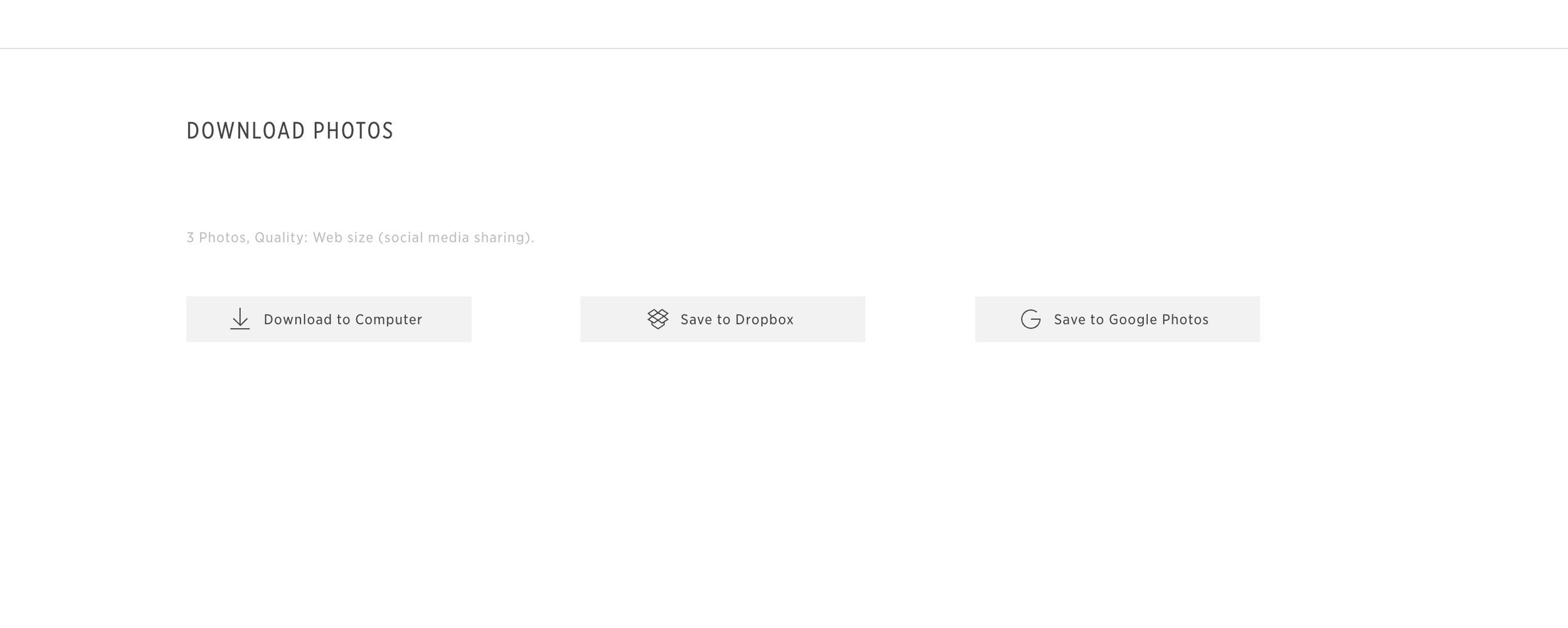
Click continue and choose where you'd like Pic-Time to send your download link
For larger galleries this can take a couple of minutes, so don't worry if it isn't instant.
Need to download just one photo?
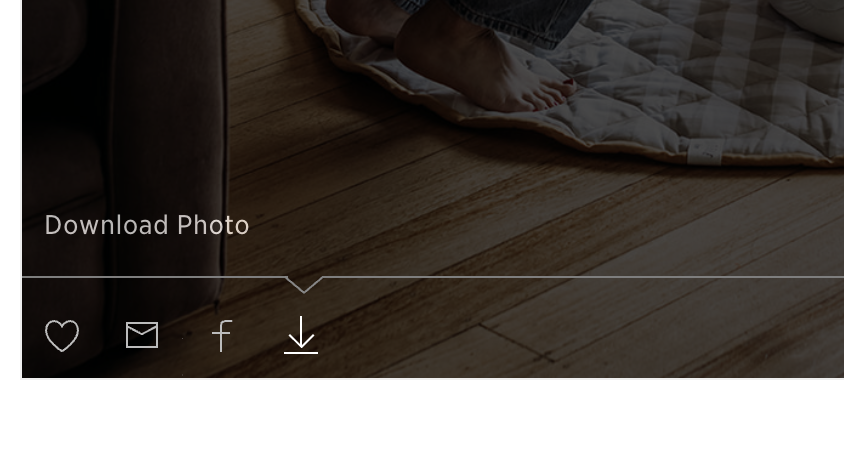
If you'd only like to save a single image, open that photo and click the download icon underneath it.
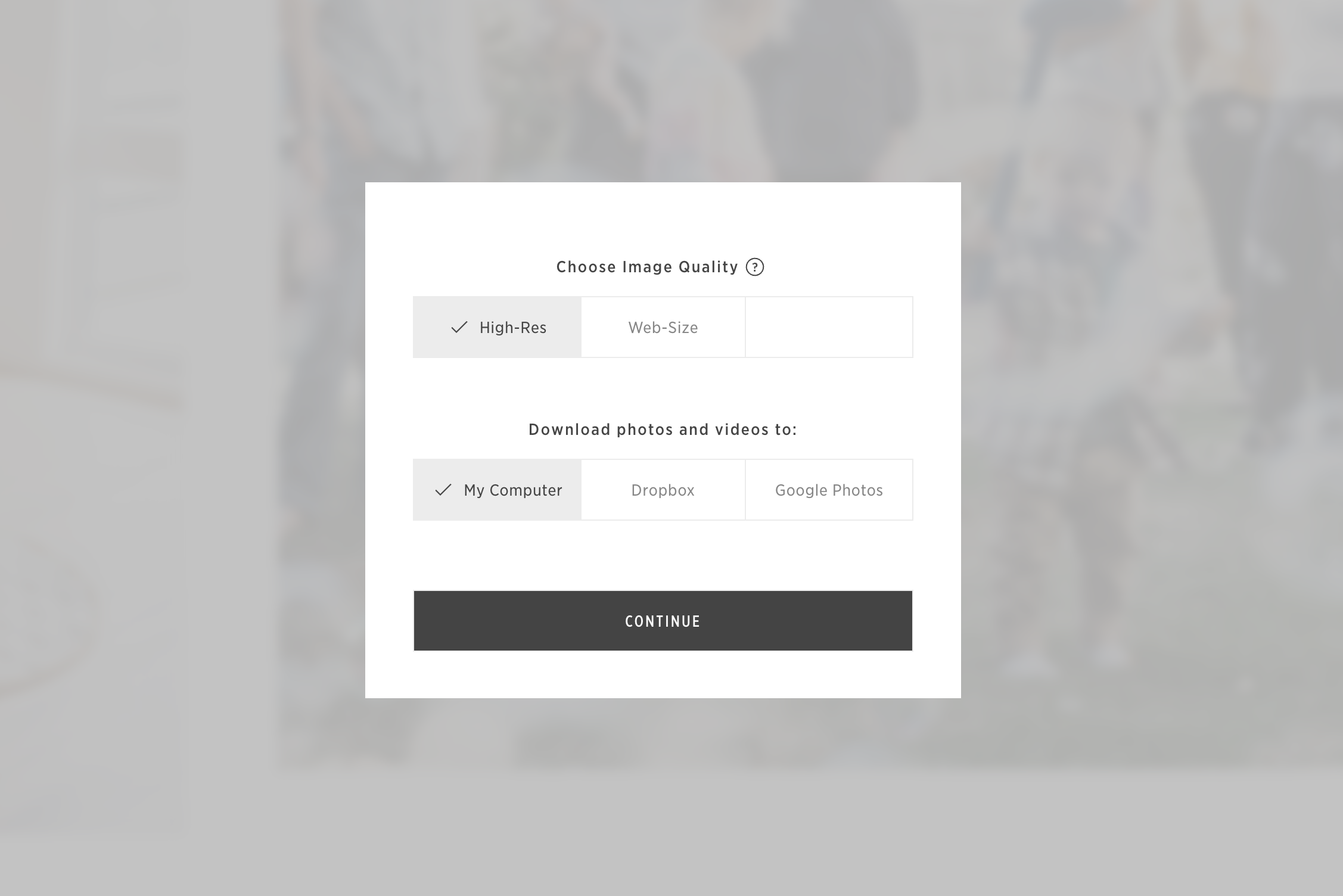
You can then choose whether you'd like the high-resolution or web-sized version.
Step 7: Your download is ready!

Your gallery will usually download as a ZIP file.
Simply double-click the ZIP file and your computer will create a normal folder containing all of your photos.
From there, you can move them wherever you'd like on your computer.
One last tip...
Once you've downloaded your gallery, don't leave it sitting in just one place.
Computers fail. Hard drives eventually give up. Phones get replaced.
I'd always recommend saving your photos somewhere else as well, whether that's an external hard drive, cloud storage or both.
Future you will be very grateful.
A quick note about Pic-Time versions
At the time of writing, Pic-Time has two gallery versions available.
This guide uses Pic-Time 1.0, which supports both photo selections and gallery downloads.
If you're viewing a Pic-Time 2.0 gallery, the download process is the same, but the photo selection feature isn't currently available.
As Pic-Time continues to update their platform, I'll keep this guide up to date as well